Managing Your Profile, Subscriptions, And Notification Settings
Intro
Your miingl profile is where you manage your personal details, subscriptions, and how you’re notified about activity.
Keeping this information up to date helps ensure smooth access to suites and events, accurate notifications, and uninterrupted use of miingl.
Prefer To Watch Instead?
If you’d rather follow along visually, this video walkthrough covers everything in this guide—from profile updates to managing subscriptions.
You can watch first, read first, or use both together.
What You Can Manage Here
From your profile, you can:
update personal information
manage notification preferences
view and change subscriptions
review payment history
change your password
All of these settings live in one place.
Step 1: Log In And Open Your Profile
Start by logging into your miingl account.
Once signed in:
navigate to your Profile section
This is where all account-level settings are managed.
Step 2: Update Your Profile Information
In your profile, you can edit details such as:
phone number
email address
orientation
occupation
brief introduction
notification settings
You can also choose whether your account is business or personal.
Keeping this information current helps with:
invitations
notifications
account access
After making changes, select Update Profile to save.
Step 3: Verify Your Phone Number (If Needed)
If you add or change your phone number:
you may be asked to re-verify it
Verification ensures text notifications are delivered correctly.
Step 4: Manage Notification Preferences
miingl lets you choose how you want to be notified.
You can opt in or out of:
text notifications
email notifications
Choose the combination that fits your workflow and availability. Many hosts enable notifications so they know when someone enters a suite or event.
Step 5: View And Manage Subscriptions
Scroll within your profile to see your active subscriptions, including:
event host subscriptions: for hosting miingl's with a start and end time
suite subscriptions: for suites that are always open or open during scheduled hours
This section shows:
your current plan
billing cycle
renewal status
Step 6: Change Or Upgrade A Subscription
To change a subscription:
select the subscription you want to update
choose monthly or yearly unlimited
complete checkout with your payment method
Changes take effect immediately unless otherwise noted.
Step 7: Cancel A Subscription (If Needed)
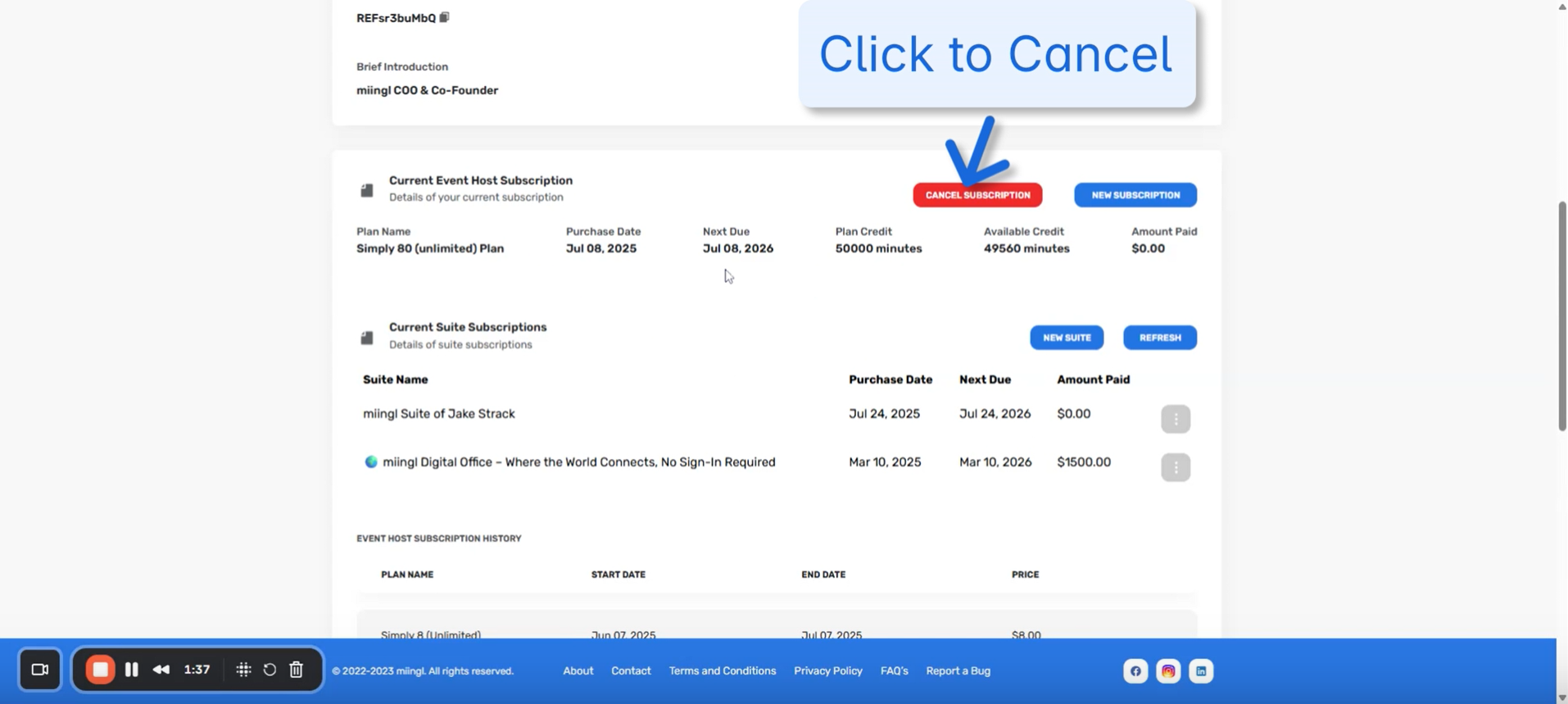
If you decide to cancel:
select Cancel Subscription
note the end date of your current billing period
Your access remains active until that date.
Step 8: Manage Suite Auto-Pay
For suite subscriptions, you can:
enable or disable auto-pay
 disable autopay to cancel your suite subscription
This gives you control over ongoing billing for each suite you manage.
Step 9: View Payment History
Your profile also includes:
a record of past payments
invoices for subscriptions
This is helpful for expense tracking or reimbursement.
Step 10: Change Your Password
To update your password:
enter your current password
choose a new password
confirm the change
Changing your password does not affect your subscriptions or access to suites.
Step 11: Get Help If You Need It
If you run into issues or have questions:
reach out to the miingl community
Help is always available if something doesn’t look right.
Where To Go Next
For related guidance:
Related Articles
How to Contact miingl Support
If you need help with miingl, there are multiple ways to get support depending on the type of issue or question you have. All support options are designed to be easy to access and low-friction. Create a Support Ticket For technical issues, account ...Mic Not Working in miingl
Microphone issues are one of the most common challenges in browser-based video platforms because they rely on your browser, operating system, and connected audio devices to work together correctly. This article walks you through the most common ...Browser & Device Compatibility For miingl
Short version: miingl is a web app that uses WebRTC. The best, most reliable experience is on a desktop computer using Chrome (Windows or macOS). Mobile and Apple devices can work, but they require a few OS/browser permission steps and a couple of ...Connection and Performance Issues in miingl
Intro If your audio, video, or overall experience feels choppy, laggy, or you’ve been disconnected from a miingl session, that’s most often due to network instability or device performance issues. This guide walks through common causes of connection ...Video Not Working In miingl (Unable To Obtain Streaming Device)
Intro If your camera isn’t turning on—or you can’t join a miingl session because of a camera error—this is usually caused by permissions, device selection, or another app using your camera. This guide walks through the most common fixes to get your ...