How to Get the Event Details Link for Ticketed Events
Ticketed events on miingl use a public event details page where attendees can learn about the event and purchase tickets. This guide shows you how to find and share that link.
This is different from an invite link.
For ticketed events, the event details link is the link you promote. After someone purchases a ticket, they receive their own invite link to join the event.
When to Use the Event Details Link
Use the event details link when you want people to:
View your event description
Purchase tickets
Share your event publicly
Promote the event on social media or event platforms
This is the primary link used for marketing and ticket sales.
Step 1: Log Into Your miingl Account
Go to app.miingl.com and log in using the account that hosts the ticketed event.
Step 2: Go to “My Events”
From your dashboard:
Navigate to My Events
Scroll to find the ticketed event you want to promote
Step 3: Open the Event Details Page
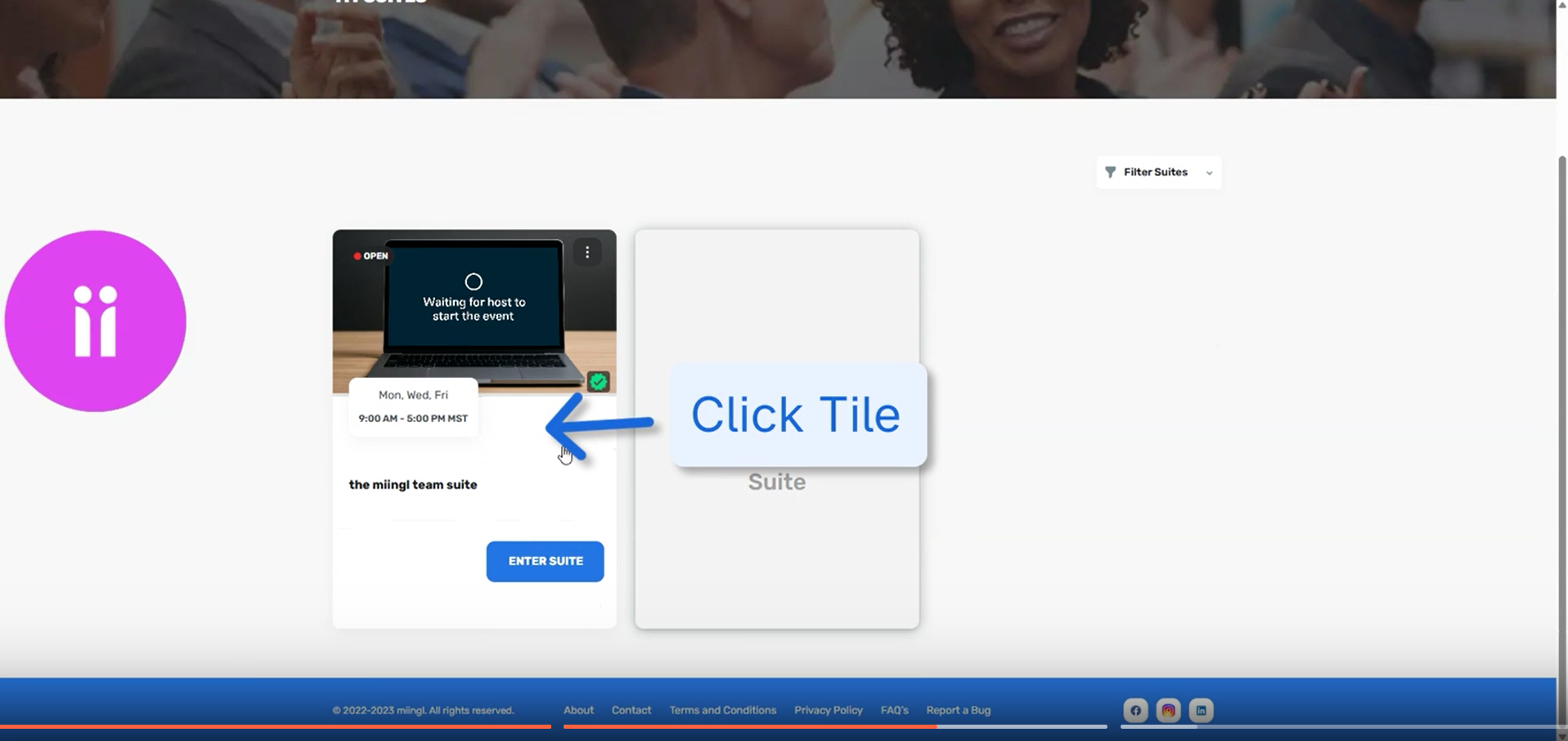
Click directly on the event
This opens the event details page that attendees will see before purchasing a ticket
Step 4: Copy the Event Details URL
Look at the browser’s address bar
Copy the full URL of the event details page
This is your event details link.
Step 5: Share the Link for Promotion
You can now share this link anywhere you promote your event, including:
Facebook or LinkedIn event pages
Meetup or community platforms
Email invitations
Your website or landing page
When someone clicks this link, they’ll see the event details and a Get Ticket button.
What Happens After Someone Buys a Ticket
Once a ticket is purchased:
The attendee receives a unique invite link
That invite link allows them to join the miingl event at the scheduled time
You do not need to manually send invite links to ticketed attendees
This keeps access secure and tied to ticket purchases.

Important Notes
Ticketed events do not use direct invite links for promotion
Always share the event details page, not an internal invite link
Each ticket purchase generates the correct access automatically
Prefer to Watch the Walkthrough?
Where to Go Next
Related Articles
How to Get an Invite Link for Your Event or Suite
Sharing your miingl event or suite is simple once you know where to find the invite link. This guide walks you through how to copy and share your URL so people can join easily. When You’d Use an Invite Link Invite links are commonly used to: Share ...Creating A Paid Workshop Or Ticketed Event
Before You Start (Prerequisites) To create a paid workshop or ticketed event on miingl, you’ll need: A miingl account Sign Up Here An Event Host subscription A nouri account Sign up A Stripe account for payment processing Sign Up If you don’t have ...Setting Up Your miingl Workshop or Event Space
Intro This article explains how to set up a workshop or event space on miingl, from creating the event to inviting participants and tracking attendance. What You’ll Learn in This Article By the end of this guide, you’ll know how to: Create a new ...How to Clone an Event on miingl
Cloning an event lets you quickly recreate a past event without starting from scratch. This is especially helpful for recurring workshops, repeated sessions, or events you plan to run again with minor updates. Important to Know Before You Start Only ...How to write event descriptions that drive attendance and ticket sales
1) Lead with a crisp “who + outcome” promise Open with 1–2 sentences that answer: Who it’s for What they’ll walk away with Why it matters now Keep it plain-language, specific, and audience-centered. CMS Guide Example opener “Built for first-time ...